
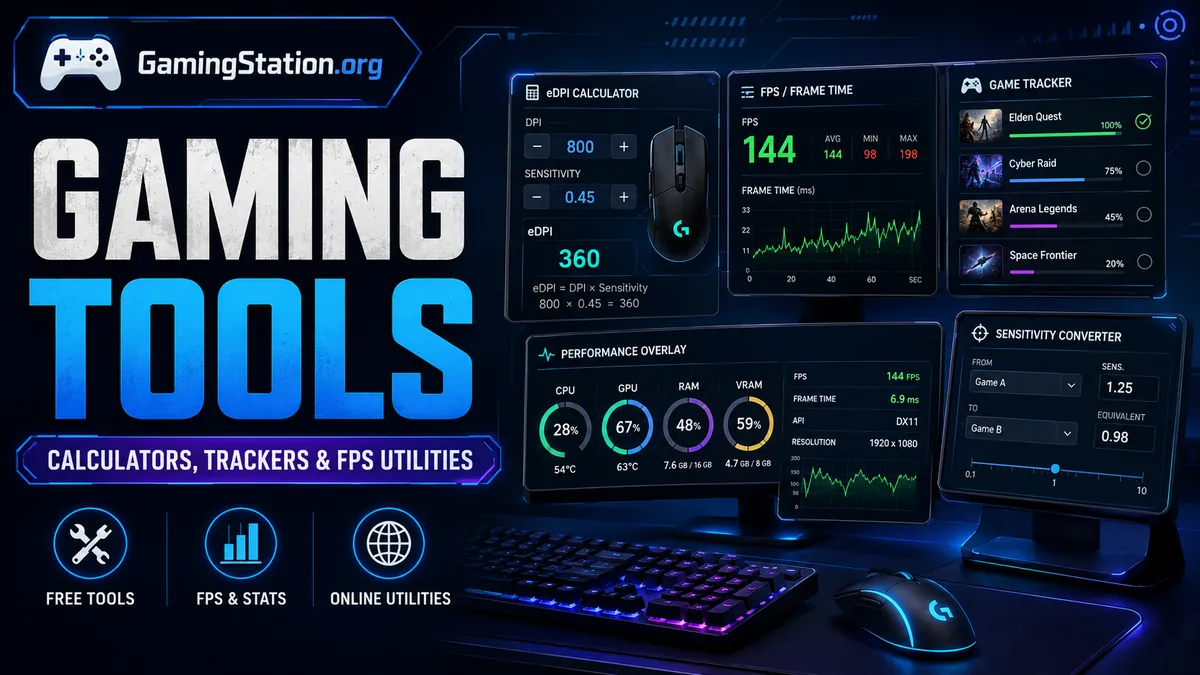
Direct Answer: Gaming tools help players measure, calculate, track, or troubleshoot gameplay data. Useful options include sensitivity and eDPI calculators, game backlog trackers, FPS and frame-time monitors, aim benchmark trackers, and performance overlays. Many gaming calculators work directly in a browser, while advanced FPS tools may require installed software.
By Gaming Station Editorial Team
Technical research, metric analysis, and gaming-utility verification.
Modern gaming tools can answer questions that ordinary game settings often cannot.
How sensitive is a mouse setup really? How long does each frame stay on screen? Is a low frame rate caused by the GPU, CPU, memory, or another process? Which games are still sitting unfinished in a library?
Instead of relying on estimates, players can use gaming calculators, performance monitors, library trackers, and other gaming utilities online to convert those questions into measurable data.
Some tools are extremely simple. An eDPI calculation needs only two values.
Others monitor:
- FPS
- Frame time
- CPU utilization
- GPU utilization
- Temperatures
- Memory usage
- Network conditions
- Game completion status
- Aim-training scores
This guide explains the most useful categories of free gaming tools, the formulas behind common calculations, what each metric actually means, and when an online calculator is more useful than installed monitoring software.
Best Gaming Tools at a Glance
| Gaming Tool Type | What It Measures or Does | Best For | Browser-Based? |
|---|---|---|---|
| eDPI Calculator | DPI × in-game sensitivity | FPS sensitivity comparison | Yes |
| Sensitivity Converter | Converts sensitivity between games | Multi-game FPS players | Yes |
| cm/360 Calculator | Mouse travel for one full rotation | Aim consistency | Yes |
| Frame-Time Calculator | FPS ↔ milliseconds per frame | Performance analysis | Yes |
| Refresh-Rate Calculator | Hz ↔ refresh interval | Monitor comparison | Yes |
| Game Tracker | Backlog, completion, ratings | Library management | Usually |
| Aim Benchmark Tracker | Training scores and ranks | FPS improvement tracking | Yes / platform dependent |
| FPS Monitor | FPS, frame time, hardware utilization | PC troubleshooting | Usually installed |
| Performance Overlay | Live CPU/GPU/FPS metrics | In-game monitoring | Installed |
| Game Recording Utility | Captures gameplay and clips | Reviewing gameplay | Usually installed |
The right tool depends on whether the objective is calculation, tracking, or diagnosis.
What Are Gaming Tools?
Gaming tools are software utilities, calculators, trackers, overlays, or reference systems that help players analyze, configure, organize, or troubleshoot gaming-related data.
They do not necessarily modify the game itself.
A gaming utility might simply calculate a number from settings already supplied by the player.
For example:
eDPI = Mouse DPI × In-Game Sensitivity
At 800 DPI and 0.50 sensitivity:
eDPI = 800 × 0.50 = 400
That number can make two mouse configurations easier to compare within the same game’s sensitivity scale.
Other tools perform continuous monitoring rather than one calculation.
NVIDIA FrameView, for example, currently measures frame rates, frame times, power, and performance data and can display metrics through a configurable overlay.
Types of Gaming Tools
The major tool categories can be divided into five groups.
1. Gaming Calculators
Best for converting settings into useful metrics.
Examples:
- eDPI calculator
- Mouse sensitivity converter
- cm/360 calculator
- FPS-to-frame-time calculator
- Refresh-rate calculator
- K/D calculator
- Win-rate calculator
2. Game Trackers
Best for organizing gaming activity.
A game tracker can record:
- Played games
- Current games
- Completed games
- Backlog
- Wishlist
- Ratings
- Platforms
- Reviews
- Playthrough status
Backloggd currently allows users to maintain a virtual game collection, update a backlog, rate played titles, maintain a wishlist, and follow other users.
3. FPS Tools
Best for PC-performance analysis.
Common metrics include:
- Average FPS
- 1% low FPS
- Frame time
- CPU utilization
- GPU utilization
- VRAM
- RAM
- Temperature
- Power consumption
These tools are particularly useful when diagnosing stutter or inconsistent performance.
4. Aim and Sensitivity Tools
Best for competitive shooters.
These include:
- Sensitivity converters
- eDPI calculators
- cm/360 converters
- Aim benchmark trackers
- Training playlists
KovaaK’s currently provides free browser tools for converting sensitivity across numerous games and for converting cm/360 measurements into game sensitivity values.
5. Gaming Guides and Reference Utilities
These explain metrics or game systems rather than monitoring them.
Examples include:
- Sensitivity guides
- FPS optimization guides
- Board-game scoring references
- Damage formulas
- Probability calculators
- Game-mechanic explanations
These tools become particularly useful when the output needs interpretation rather than just a number.
Best Free Gaming Calculators
1. eDPI Calculator
Best for: Comparing FPS mouse setups
eDPI stands for effective dots per inch.
The basic formula is:
eDPI = DPI × In-Game Sensitivity
Example
Mouse DPI:
800
Game sensitivity:
0.40
Calculation:
800 × 0.40 = 320 eDPI
If another configuration uses:
1600 DPI × 0.20 sensitivity
the result is also:
320 eDPI
Within the same game’s sensitivity scale, those settings therefore have the same eDPI.
Important limitation
eDPI should not automatically be used to compare sensitivity numbers between different games.
Different games can use different sensitivity scales, field-of-view systems, and rotational calculations.
For cross-game conversion, a dedicated sensitivity converter or cm/360 measurement is more appropriate.
2. Mouse Sensitivity Converter
Best for: Players switching between FPS games
A sensitivity converter attempts to reproduce similar rotational mouse movement across games.
For example, a player moving between two shooters may want the same physical mouse distance to produce approximately one complete 360-degree rotation.
KovaaK’s current free sensitivity converter supports conversions across many games and can incorporate DPI and cm/360 information.
Basic conversion workflow
- Select the original game.
- Enter current sensitivity.
- Enter mouse DPI if required.
- Select the target game.
- Calculate converted sensitivity.
- Test the result in-game.
Why direct sensitivity numbers are unreliable
A sensitivity value of:
1.0
does not necessarily produce the same rotation in two different games.
The games may interpret mouse input using different multipliers.
That is why cross-game converters are more useful than simply copying one sensitivity value into another game.
3. cm/360 Calculator
Best for: Physical aim consistency
cm/360 measures how many centimeters the mouse must travel to rotate the in-game camera by 360 degrees.
For example:
30 cm/360
means the mouse needs approximately 30 centimeters of physical movement for one full rotation.
How to interpret cm/360
A smaller number generally represents faster sensitivity:
20 cm/360 → faster
A larger number generally represents slower sensitivity:
50 cm/360 → slower
KovaaK’s currently provides a free cm/360-to-sensitivity converter for matching physical sensitivity measurements with supported games.
Why cm/360 is useful
Unlike a raw sensitivity number, cm/360 represents actual physical mouse travel.
That makes it useful for:
- Comparing setups
- Documenting sensitivity
- Changing DPI
- Moving between supported games
- Aim-training configuration
4. FPS to Frame-Time Calculator
Best for: Understanding smoothness and performance
FPS tells players how many frames are generated each second.
Frame time tells them approximately how long each frame takes.
The conversion formula is:
Frame Time (ms) = 1000 ÷ FPS
Common FPS and Frame-Time Values
| FPS | Approx. Frame Time |
|---|---|
| 30 FPS | 33.33 ms |
| 60 FPS | 16.67 ms |
| 90 FPS | 11.11 ms |
| 120 FPS | 8.33 ms |
| 144 FPS | 6.94 ms |
| 165 FPS | 6.06 ms |
| 240 FPS | 4.17 ms |
| 360 FPS | 2.78 ms |
The relationship is not linear.
Moving from 30 FPS to 60 FPS reduces theoretical frame duration by approximately:
16.66 ms
Moving from 240 FPS to 360 FPS reduces it by approximately:
1.39 ms
This is why FPS gains should also be considered in terms of frame time.
5. Monitor Refresh-Rate Calculator
Best for: Understanding display timing
A monitor’s refresh interval can be calculated with:
Refresh Interval (ms) = 1000 ÷ Refresh Rate (Hz)
For a 144 Hz monitor:
1000 ÷ 144 ≈ 6.94 ms
For 240 Hz:
1000 ÷ 240 ≈ 4.17 ms
For 360 Hz:
1000 ÷ 360 ≈ 2.78 ms
This is the display’s nominal refresh interval—not a guarantee of total system latency.
Input latency can also depend on:
- Game engine
- CPU processing
- GPU rendering
- Frame queue
- Input device
- Display processing
- Synchronization settings
Useful Competitive Gaming Calculators
Several simple calculations are useful beyond hardware performance.
K/D Ratio Calculator
K/D Ratio = Kills ÷ Deaths
Example:
240 kills ÷ 160 deaths = 1.50 K/D
A K/D above 1 means the player has more kills than deaths over the measured sample.
Win-Rate Calculator
Win Rate (%) = Wins ÷ Total Matches × 100
Example:
60 wins from 100 matches:
60 ÷ 100 × 100 = 60%
Headshot Percentage Calculator
Where game statistics support the necessary inputs:
Headshot % = Headshot Kills ÷ Total Kills × 100
Example:
225 headshot kills from 500 total kills:
225 ÷ 500 × 100 = 45%
These calculators are simple enough to run entirely in a browser and are strong candidates for lightweight gaming utilities online.
Best Game Tracker Tools
A game library can easily become difficult to manage when titles are spread across several platforms.
That is where a game tracker becomes useful.
Backloggd
Best for: Browser-based backlog management
Backloggd describes itself as a virtual video-game collection tracker.
Users can currently:
- Track a game collection
- Maintain a backlog
- Record what they are playing
- Rate games
- Write reviews
- Create wishlists
- Follow friends
- Filter their collection
Best use case
Use Backloggd when the primary objective is:
Game discovery + backlog + social tracking
Stash
Best for: Personal game collection tracking
Stash currently describes itself as a personal video-game tracker supporting collection management, completion status, platforms, play time, collections, reviews, and release information.
Best use case
Use a tracker like Stash when the objective is to maintain a broader structured library across different titles and platforms.
What Should You Track in a Gaming Backlog?
A useful game tracker does not need dozens of status labels.
Start with:
| Status | Meaning |
|---|---|
| Backlog | Owned or planned but not started |
| Playing | Currently active |
| On Hold | Temporarily paused |
| Completed | Main objective finished |
| 100% / Completed+ | Optional completion target achieved |
| Dropped | No longer planning to continue |
| Wishlist | Not currently owned |
Additional useful fields include:
- Platform
- Start date
- Finish date
- Playtime
- Personal rating
- Genre
- Multiplayer status
The exact labels matter less than using the same system consistently.
Best FPS Tools for PC Gaming
FPS monitoring requires more than a calculator when the objective is diagnosing real-time performance.
NVIDIA FrameView
Best for: Detailed frame-rate and performance measurements
NVIDIA FrameView currently measures metrics including:
- Frame rate
- Frame time
- Power
- Performance-per-watt
- Additional performance data
It provides a configurable real-time overlay and can save data for analysis. NVIDIA states that FrameView works across a wide range of graphics cards and major graphics APIs rather than being limited solely to NVIDIA GPUs.
Best for
- Benchmarking
- Frame-time analysis
- GPU comparison
- Performance logging
- Power monitoring
Unlike browser calculators, FrameView requires installed software because it needs access to live system telemetry.
AMD Software Performance Metrics
Best for: AMD Radeon systems
AMD Software: Adrenalin Edition includes performance-monitoring functionality for compatible Radeon hardware.
AMD documents support for tracking and displaying metrics such as system-performance data through graphs, meters, and an in-game overlay. Data can also be logged for later analysis.
Common monitored information can include:
- FPS
- CPU utilization
- GPU utilization
- Memory usage
- Other supported hardware metrics
Best for
AMD users who already have the appropriate driver software installed may not need a separate utility for basic real-time monitoring.
Aim Benchmark Trackers
FPS tools are not limited to hardware.
Performance can also refer to aiming scores.
KovaaK’s currently provides a Benchmark Tracker that can record aim-training performance, scores, and rank progression across supported benchmark environments.
Useful metrics can include
- Score
- Rank
- Scenario performance
- Improvement over time
- Benchmark category
A tracker becomes more useful when the same scenarios are repeated under similar settings.
Changing sensitivity, scenario, mouse setup, and training conditions simultaneously makes the results harder to compare.
Gaming Calculator vs FPS Monitor: What Is the Difference?
These tools solve different problems.
| Tool | Input | Output | Runs Continuously? |
|---|---|---|---|
| eDPI Calculator | DPI + sensitivity | eDPI | No |
| Sens Converter | Game + sensitivity | Converted sensitivity | No |
| Frame-Time Calculator | FPS | Milliseconds | No |
| Game Tracker | User activity | Backlog/history | Updated manually/automatically |
| FPS Monitor | Live hardware data | FPS and telemetry | Yes |
| Performance Overlay | System/game sensors | Live metrics | Yes |
Use a gaming calculator when:
- The answer can be derived mathematically.
- No live hardware data is required.
- Privacy or installation simplicity matters.
- The calculation needs to work on mobile or desktop.
Use installed FPS tools when:
- Live GPU data is required.
- Temperatures need monitoring.
- Frame-time spikes need diagnosis.
- Performance needs to be logged during gameplay.
Important FPS Metrics Explained
Average FPS
Average frames produced per second over the measurement period.
Useful, but incomplete by itself.
Frame Time
The amount of time associated with producing/displaying frames, commonly expressed in milliseconds.
A stable frame-time graph can reveal performance behavior that a single average FPS number hides.
1% Low FPS
A percentile-style performance metric intended to describe slower frames rather than only average throughput.
It can help expose situations where a game reports a strong average FPS but experiences noticeable dips.
GPU Utilization
The percentage of available GPU processing capacity being used.
High GPU utilization is not automatically a problem.
A GPU-bound game can legitimately use most of the GPU.
CPU Utilization
Shows how much processor capacity is being used.
Total CPU percentage can be misleading in some games because one or several heavily loaded threads may limit performance before overall CPU utilization reaches 100%.
VRAM Usage
Video memory used by graphics-related workloads.
It should not be confused with normal system RAM.
How to Diagnose Low FPS With Gaming Tools
Use a structured process rather than changing random settings.
Step 1: Record the Baseline
Measure:
- Average FPS
- Frame time
- 1% lows if available
- GPU utilization
- CPU utilization
- RAM usage
- VRAM usage
- Temperatures
Step 2: Reproduce the Same Scenario
Performance comparisons are meaningful only when the workload is reasonably similar.
Benchmark the same:
- Area
- Map
- Resolution
- Graphics preset
- Character position
- Test duration
Step 3: Change One Variable
For example:
Resolution: 1440p → 1080p
Then rerun the test.
Do not simultaneously change:
- Resolution
- Upscaling
- Shadows
- textures
- frame limit
Otherwise, the effect of each setting becomes difficult to isolate.
Step 4: Compare the Result
Example:
| Metric | Before | After |
|---|---|---|
| Average FPS | 72 | 104 |
| 1% Low | 48 | 73 |
| GPU Usage | 99% | 87% |
This pattern could indicate that reducing the graphics workload substantially increased performance.
The numbers still need interpretation in the context of the specific system and game.
Which Gaming Tools Should Run in a Browser?
Some tools are ideal for the web.
Excellent browser-based tools
- eDPI calculators
- Sensitivity converters
- cm/360 calculators
- FPS/frame-time calculators
- Refresh-rate calculators
- Win-rate calculators
- K/D calculators
- Probability calculators
- Game trackers
- Rule references
These typically need only user-supplied data.
Which Gaming Tools Need Installed Software?
Installed tools are generally necessary when direct hardware or game-process telemetry is required.
Examples:
- FPS overlays
- GPU utilization monitors
- CPU monitoring
- Temperature monitoring
- Frame-time capture
- Power measurement
- Gameplay recording
NVIDIA FrameView and AMD Software’s performance-monitoring features are examples of utilities that access live system data rather than operating as simple web calculators.
How to Choose Safe Free Gaming Tools
Not every website advertising a “free FPS boost” or “gaming optimizer” should be trusted.
Use this checklist.
Prefer tools that clearly explain what they calculate
A legitimate calculator should show:
- Required inputs
- Formula or methodology
- Output meaning
Avoid unexplained executable downloads
A basic eDPI or win-rate calculator does not need system-level access.
If a simple calculation page demands software installation, determine why before proceeding.
Use official hardware tools where practical
For GPU monitoring, established vendor utilities can reduce the need to install unknown monitoring software.
AMD provides integrated performance metrics in Adrenalin Edition, while NVIDIA provides FrameView for detailed performance measurement.
Verify what optimization tools change
A program claiming to:
- Increase FPS
- Lower latency
- Optimize Windows
- Modify network settings
should explain which settings it changes.
Avoid assuming that every “gaming optimization” automatically improves every PC.
Best Gaming Tools by Player Type
| Player Type | Most Useful Tools |
|---|---|
| Competitive FPS player | Sens converter, eDPI, cm/360, latency/FPS monitor |
| PC performance enthusiast | FPS, frame-time and hardware monitoring |
| Multi-game player | Sens converter + game tracker |
| Casual gamer | Game tracker and backlog manager |
| Aim-training player | Benchmark tracker + cm/360 |
| PC troubleshooter | Frame-time, CPU/GPU and temperature monitor |
| Content creator | Performance overlay + gameplay recording |
| Statistics-focused player | K/D, win rate and performance calculators |
Gaming Tools GamingStation.org Should Prioritize
For a gaming publication, browser-based calculators have an important advantage: they can answer narrow questions immediately without requiring an external download.
A strong Gaming Tools & Mechanics ecosystem can include:
FPS & Mouse Tools
- Mouse Sensitivity Converter
- eDPI Calculator
- cm/360 Calculator
- FPS to Frame-Time Calculator
- Refresh Rate Calculator
Competitive Statistics
- K/D Ratio Calculator
- Win Rate Calculator
- Headshot Percentage Calculator
Gaming Mechanics
- Damage Calculator
- DPS Calculator
- Critical Hit Calculator
- Drop Chance Calculator
- Probability Calculator
Tracking Utilities
- Game Backlog Tracker
- Game Night Score Tracker
- Tournament Score Tracker
Each tool can connect to an explanatory guide answering:
What does the metric mean?
How is it calculated?
When should the number be used?
That structure makes calculators useful beyond the calculation itself.
Common Gaming Tool Mistakes
Comparing eDPI Across Unrelated Games
Because game sensitivity scales differ, equal eDPI values do not automatically guarantee identical physical sensitivity across different games.
Use a game-aware converter or cm/360.
Looking Only at Average FPS
A game can report a high average while still experiencing frame-time spikes.
Use additional metrics when diagnosing smoothness.
Assuming More FPS Always Means the Same Improvement
The frame-time benefit becomes progressively smaller as FPS rises.
Compare milliseconds as well as frames per second.
Installing Too Many Monitoring Tools
Running multiple overlays and logging applications at once can make troubleshooting harder.
Start with one known monitoring solution.
Treating a Game Backlog Like an Obligation
A game tracker is an organizational tool.
Its purpose is to help users understand what they own, play, or plan to play—not create another workload.
Gaming Tools Quick Reference
| Question | Tool to Use |
|---|---|
| What is my effective sensitivity? | eDPI Calculator |
| How do I match sensitivity between games? | Sensitivity Converter |
| How far do I move my mouse for 360°? | cm/360 Tool |
| How many milliseconds is 144 FPS? | Frame-Time Calculator |
| How often does a 240 Hz display refresh? | Refresh-Rate Calculator |
| What games have I finished? | Game Tracker |
| Why is my FPS dropping? | FPS/Performance Monitor |
| Is the GPU fully loaded? | Hardware Overlay |
| Is my aim improving? | Aim Benchmark Tracker |
| What is my win percentage? | Win-Rate Calculator |
Final Verdict: Which Gaming Tools Are Most Useful?
The most useful gaming tools are the ones that convert a specific question into an actionable measurement.
For competitive FPS players, sensitivity converters, eDPI calculators, cm/360 tools, and performance monitors provide the most immediate value. KovaaK’s currently offers browser-based sensitivity conversion and benchmark-tracking utilities, while NVIDIA FrameView and AMD Adrenalin provide deeper system-level performance monitoring.
For players managing large game libraries, a game tracker such as Backloggd or Stash can organize completion status, collections, wishlists, and other library information.
The simplest selection framework is:
Calculate → Track → Monitor → Interpret
Use a calculator when a formula is enough, a tracker when historical data matters, and an FPS monitoring utility when real-time system information is required.
Editorial Verification Sources
Gaming Station reviewed current product and documentation pages from NVIDIA, AMD, KovaaK’s, Backloggd, Stash, and Steam-accessible utility information while preparing this guide. Tool capabilities, supported games, compatibility, and free/premium access can change over time and should be verified before installation or account creation.
Frequently Asked Questions About Gaming Tools
What are gaming tools?
Gaming tools are calculators, trackers, overlays, monitoring applications, and reference utilities that help players configure settings, analyze performance, organize games, or understand gameplay metrics. Common examples include eDPI calculators, sensitivity converters, FPS monitors, game trackers, and frame-time calculators.
What are the best free gaming tools?
Useful free gaming tools include browser-based eDPI calculators, FPS/frame-time calculators, sensitivity converters, and game trackers. KovaaK’s currently offers free sensitivity conversion tools, while Backloggd provides browser-based video-game collection and backlog tracking.
What gaming calculators are useful for FPS games?
The most useful FPS gaming calculators include eDPI calculators, mouse sensitivity converters, cm/360 calculators, FPS-to-frame-time calculators, and refresh-rate calculators. Each measures a different part of aiming or performance rather than providing one universal “best settings” number.
What is a game tracker?
A game tracker is a utility used to organize video games and playing history. Depending on the service, it can record backlog status, completed games, current games, ratings, wishlists, platforms, reviews, or playtime. Backloggd and Stash are current examples.
What FPS tools should PC gamers use?
For simple calculations, an FPS-to-frame-time calculator is sufficient. For live measurements, PC players can use performance-monitoring software. NVIDIA FrameView can measure frame rates, frame times, power, and additional metrics, while AMD Software provides performance monitoring for compatible Radeon systems.
How do you calculate frame time from FPS?
Use:
Frame Time (ms) = 1000 ÷ FPS
At 60 FPS, each frame represents approximately 16.67 milliseconds. At 144 FPS, the value is approximately 6.94 ms, while 240 FPS corresponds to approximately 4.17 ms.
How do you calculate eDPI?
Multiply mouse DPI by the in-game sensitivity:
eDPI = DPI × Sensitivity
For example, 800 DPI with a sensitivity of 0.5 equals 400 eDPI. Cross-game comparisons may require a sensitivity converter because games can use different sensitivity scales.
Are online gaming utilities safe?
A browser calculator that only processes user-entered numbers generally requires far less system access than installed optimization software. Users should still verify the domain, privacy practices, and methodology. Executables that promise FPS or latency improvements should clearly explain what system settings they modify.
Do FPS tools increase FPS?
Monitoring tools primarily measure performance; they do not automatically increase frame rate. Optimization requires identifying the limiting factor and adjusting appropriate game, driver, hardware, or system settings. A monitor is useful because it provides evidence for that diagnosis.
