
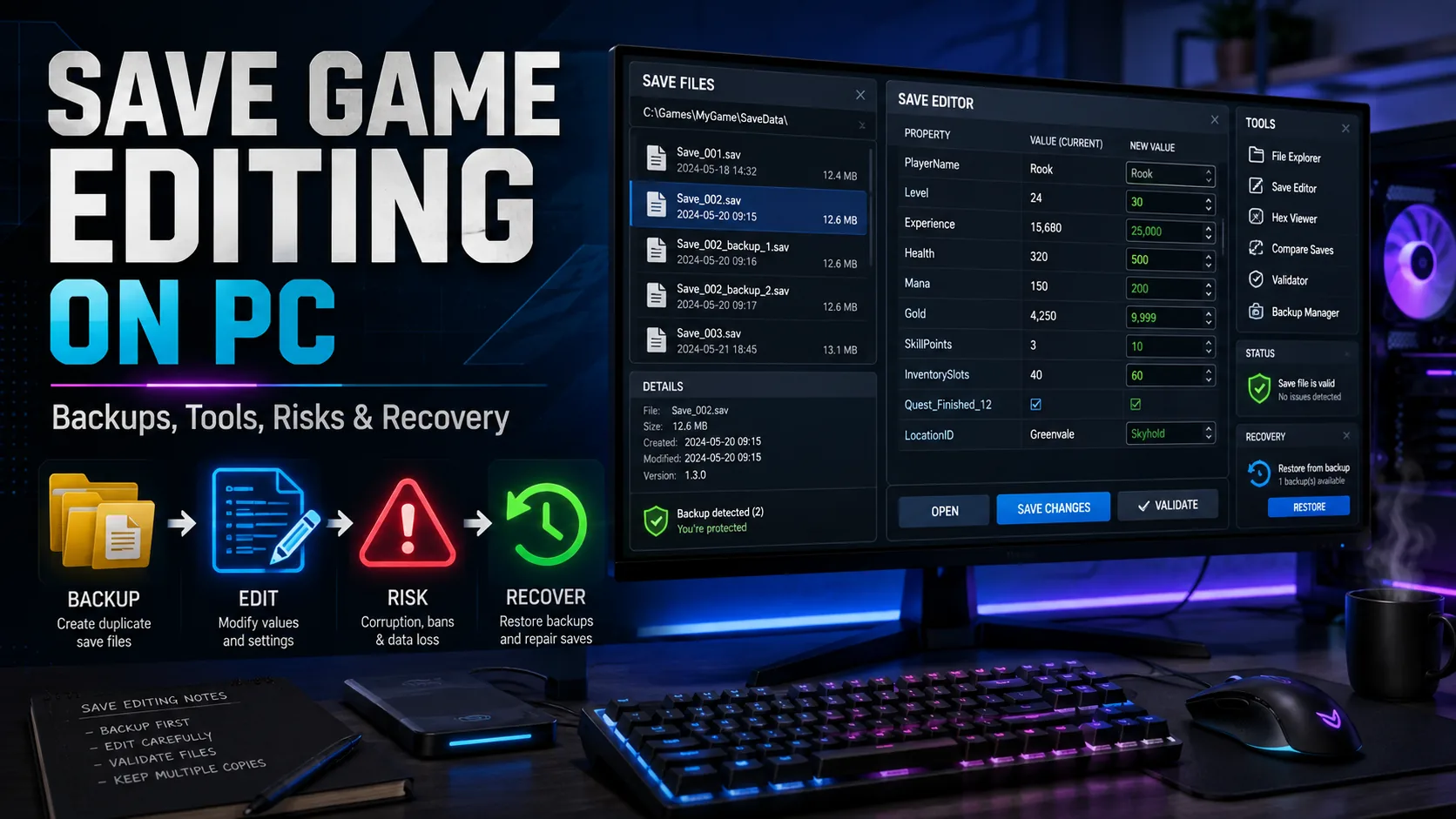
Direct Answer: Save game editing lets PC players modify progress data such as inventory, currency, quest flags, character stats, or unlock states. The safest workflow is to locate the correct save, make multiple backups, close the game and launcher sync, use a game-specific editor when possible, change one value at a time, and test before replacing the original save.
By Gaming Station Editorial Team
Last reviewed: August 2026
Save files contain some of the most valuable data on a gaming PC. A single file may represent dozens—or hundreds—of hours of progression.
That makes save game editing useful, but also risky.
Players commonly edit saves to:
- Restore progression after a bug
- Recreate lost items
- Adjust single-player resources
- Experiment with character builds
- Repair broken quest states
- Move progress between compatible versions
- Inspect hidden save data
- Recover partially damaged saves
The problem is that save files are not standardized.
One game may store progress as readable JSON or XML. Another may use a compressed binary structure, database, checksum, encryption layer, or several interdependent files. Editing the wrong byte, allowing cloud sync to overwrite a restored version, or loading a save with mismatched game data can make recovery harder.
Steam Cloud, for example, can synchronize supported files between computers, while GOG Galaxy offers its own cloud-save system. Those systems are valuable for normal play, but synchronization should be considered carefully when manually replacing save files because the cloud and local copies can differ.
This guide explains how to edit game save files safely on Windows, find save locations, choose appropriate tools, create reliable backups, manage cloud synchronization, and recover from corruption when possible.
Save Game Editing: Quick Safety Checklist
Before editing any save:
- Close the game completely.
- Identify the exact save folder.
- Copy the entire folder, not just one file.
- Create at least two backup versions.
- Record the game version and save timestamp.
- Temporarily account for cloud synchronization.
- Use a game-specific editor when available.
- Change one variable at a time.
- Never overwrite your only working copy.
- Test the edited save before deleting backups.
The critical principle is:
Edit a copy, not your original.
What Is Save Game Editing?
Save game editing is the process of modifying data stored in a game’s save files outside normal gameplay.
Depending on the title, editable data can include:
- Character level
- Currency
- Inventory
- Equipment
- Skill points
- Map progress
- Quest states
- Difficulty settings
- Companion data
- World variables
- Collectibles
- New Game Plus flags
Save editing is usually most practical in offline or single-player games.
If you are editing stats or build-related values in Pokémon games, first read our guide on Pokemon IVs vs EVs so you understand how stat systems work before changing save data.
For competitive or online games, modifying save or account data can conflict with game rules, validation systems, anti-cheat controls, or server-side progression.
Save Editors vs Manual File Editing
There are two basic approaches.
Dedicated Save Editor
A save editor PC tool is built specifically for a particular game or save format.
It may display data using readable fields such as:
Gold: 12,450
Level: 34
Skill Points: 7
instead of requiring you to manipulate raw file structures.
Advantages
- Easier to understand
- Less chance of changing unrelated bytes
- May recalculate checksums automatically
- Can expose game-specific variables
- Often validates input
Disadvantages
- Can become outdated
- May not support every game version
- Unofficial downloads can present security risks
- Poorly designed editors can still damage files
Manual Save Editing
Manual editing involves opening the underlying file using an appropriate editor.
Possible formats include:
.json.xml.ini.txt.sav.dat- SQLite databases
- Proprietary binary files
Readable formats may be edited with a text editor.
Binary formats generally require:
- A hex editor
- Format documentation
- Game-specific tooling
- Scripts designed for the save structure
Manual editing provides more control but requires more technical understanding.
Common Types of PC Save Files
| Save Format | Human Readable? | Typical Tool |
|---|---|---|
| TXT | Yes | Text editor |
| JSON | Yes | Text/code editor |
| XML | Yes | Text/XML editor |
| INI | Usually | Text editor |
| SQLite | Partially | SQLite browser |
| Binary SAV | Usually no | Game-specific editor |
| DAT | Depends | Game-specific tool |
| Compressed archive | Usually no | Compatible unpacker/editor |
| Encrypted save | No | Game-specific tool |
The extension alone does not reliably identify the format.
A file named:
profile.sav
could internally contain:
- Plain text
- Binary data
- Compressed content
- Encrypted content
- Database records
So do not assume .sav means one standardized save format.
How to Find a Save File Location on Windows
There is no universal save file location Windows uses for every game.
Developers choose where progression is stored.
Common locations include:
C:\Users\<Username>\Documents\C:\Users\<Username>\Documents\My Games\C:\Users\<Username>\Saved Games\C:\Users\<Username>\AppData\Local\C:\Users\<Username>\AppData\LocalLow\C:\Users\<Username>\AppData\Roaming\Steam titles may also store game-related data beneath Steam’s userdata directories, although Steam Cloud supports developer-defined file locations rather than requiring every game to store saves in one single folder. Valve documents Steam Cloud as a synchronization system for application files configured by individual games.
How to Open AppData
AppData is hidden by default in many Windows configurations.
A quick method is:
Local AppData
Press:
Windows + R
Enter:
%LOCALAPPDATA%Roaming AppData
Enter:
%APPDATA%For the parent AppData folder:
%USERPROFILE%\AppDataThen search for:
- Game name
- Developer name
- Publisher name
- Engine-related folders
How to Confirm You Found the Correct Save Folder
Do not immediately edit the first .sav file you find.
Instead:
- Note the modification time.
- Launch the game.
- Make a small controlled save.
- Exit normally.
- Check which files changed.
If:
SaveSlot01.sav
updates at exactly the time you saved,
that is strong evidence it belongs to the active slot.
Also check for companion files such as:
SaveSlot01.sav
SaveSlot01.meta
profile.dat
settings.ini
Some games require multiple files to remain synchronized.
Search Windows by Modification Time
When the location is unknown, a useful discovery method is:
- Save the game.
- Record the exact time.
- Close the game.
- Search likely folders for files modified during that minute.
Potential locations:
- Documents
- Saved Games
- AppData
- Game installation directories
File timestamps are especially useful when game and folder names are unclear.
Save Files Are Usually Separate From Game Installation Files
A common beginner mistake is searching only inside:
C:\Program Files\or:
SteamLibrary\steamapps\common\Some games do store saves nearby, but many deliberately keep user data elsewhere so uninstalling or updating the game does not automatically remove progression.
Save data should therefore be investigated separately from:
- Executables
- Textures
- DLLs
- Game archives
- Installed game content
Backup Game Saves Before Editing
The most important step in save game editing is creating a recoverable backup.
Do not make:
save.sav → edit save.savUse:
save.sav
save_BACKUP_2026-08-11.sav
save_EDIT_TEST_01.sav
Better still, copy the complete folder.
Example:
GameSaveBackup/
├── Original/
├── Before_Edit_01/
├── Before_Edit_02/
└── Working_Copy/
This preserves companion files and reduces the chance of restoring an incomplete save set.
Why One Backup Is Not Enough
Suppose you create a backup.
Then:
- Launch the edited save.
- The game automatically saves.
- Cloud synchronization runs.
- You accidentally copy the wrong version over your backup.
Your “backup” may now be compromised.
A safer structure is:
Backup A
Untouched original.
Backup B
Secondary copy stored elsewhere.
Working copy
The file you actually modify.
This separates recovery data from experimentation.
Use Timestamped Backup Folders
A practical naming format is:
GameName_SaveBackup_2026-08-11_1150Or:
GameName_PreEdit_Level42Useful metadata includes:
- Date
- Time
- Character name
- Save slot
- Game version
- Progress point
Example:
RPG_PreEdit_Lv42_BeforeQuest_FinalBackupClear naming matters when several experimental files accumulate.
Store One Backup Outside the Save Directory
Do not keep every backup beside the live save.
Use another location such as:
Documents\Game Save Backups\or an external drive.
Windows also provides File History for backing up supported user folders to another drive or network location. Microsoft states that File History can restore previous versions of files and folders when backups exist.
That provides an additional recovery layer beyond manually copied files.
Understand Cloud Saves Before Editing
Cloud sync can protect saves—but it can also complicate manual modification.
A typical scenario:
Local save
Edited version
Cloud save
Older original version
When the launcher starts, it may need to determine which state should be synchronized.
Steam allows cloud synchronization to be enabled or disabled for supported applications through game properties.
GOG Galaxy similarly provides an option to disable synchronization of local saves with GOG Galaxy Cloud.
Safe Cloud-Sync Workflow
For games with cloud saves:
- Exit the game.
- Allow any current synchronization to finish.
- Create a manual local backup.
- Identify whether the game uses cloud saves.
- If needed, temporarily disable synchronization before testing edits.
- Edit the working copy.
- Launch and verify locally.
- Exit normally.
- Re-enable synchronization carefully.
- If presented with a sync conflict, inspect timestamps before choosing a version.
Do not automatically select:
Cloud
or:
Local
without knowing which contains the desired save.
Cloud Sync Is Not the Same as a Backup Archive
Synchronization tries to keep files consistent across devices.
That is different from maintaining:
- Multiple historical versions
- Immutable backups
- Offline copies
If corruption synchronizes successfully, the damaged state may propagate.
GOG itself describes Cloud Saves as copies of progress stored on its servers and provides a separate Cloud Saves Backup feature for downloading backups.
Treat sync and backup as related but different safeguards.
Which Save Editor PC Tool Should You Use?
Use this priority order:
1. Official developer-supported tools
Best when available.
2. Widely documented game-specific editor
Prefer tools with:
- Active maintenance
- Version history
- Source transparency when available
- Strong community documentation
- Current game-version support
3. Structured-data editor
For JSON, XML, SQLite, or similar formats.
4. Hex editor
Use when the format is understood.
5. Unknown executable from an unverified download site
Avoid.
The more privileged and opaque the tool, the higher the risk.
Security Risks From Save Editors
A save editor may be an executable file downloaded from a third party.
That means normal PC software-security rules apply.
Potential risks include:
- Malware
- Trojanized installers
- Credential theft
- Bundled unwanted software
- Outdated dependencies
- False-positive antivirus alerts
- Malicious forks of legitimate tools
Before running one:
- Verify the source.
- Check whether the project has a known official page.
- Avoid repacked installers.
- Inspect release history.
- Scan downloaded files with your security tools.
- Prefer open-source or well-documented software when practical.
A save-editing task is not worth compromising the PC.
Do Not Disable Security Protections Just to Run a Save Editor
If a random editor requires you to:
- Disable antivirus entirely
- Run an unknown script as administrator
- Disable Windows security features
- Install suspicious browser extensions
- Enter game-account credentials
stop.
Most local save editors should not need your:
- Steam password
- Epic password
- Microsoft account password
- Game account credentials
Editing a local save file and authenticating an online account are fundamentally different operations.
How to Edit Game Save Files Safely
The exact process varies, but a conservative workflow looks like this.
Step 1: Close the Game
Make sure it is not:
- Running
- Saving
- Synchronizing
- Suspended in the background
A live game may overwrite manual edits.
Step 2: Back Up the Entire Save Folder
Example:
Original_Save/Then create:
Working_Save/Never modify Original_Save.
Step 3: Identify the Format
Ask:
- Can a text editor read it?
- Does it start with recognizable JSON/XML?
- Is it a database?
- Is it binary?
- Is there a dedicated editor?
Do not save a binary file through a text editor.
Step 4: Make One Small Change
Do not immediately modify:
- Money
- Level
- Inventory
- Quest state
- Skill tree
- Character class
all at once.
Change one known value.
For example:
gold: 12500to:
gold: 13000Then test.
A small controlled change makes troubleshooting easier.
Step 5: Preserve Data Types
Suppose the file contains:
"level": 42Do not blindly change it to:
"level": "99"The first value is a number.
The second is a string.
Some parsers will reject type changes.
Likewise:
"questComplete": falseshould not automatically become:
"questComplete": 1unless the format specifically expects numeric Boolean values.
Do Not Break Structured Syntax
Consider this JSON:
{
  "gold": 5000,
  "level": 22,
  "hardMode": false
}
A malformed edit:
{
  "gold": 999999
  "level": 22,
  "hardMode": false
}
is missing a comma.
One character can prevent the entire file from parsing.
When editing structured text, validate:
- Commas
- Quotes
- Brackets
- Encoding
- Key names
- Data types
Why Binary Save Editing Is Harder
Binary saves may encode numbers differently from how humans write them.
For example, the decimal number:
1000
might be stored using:
- 16-bit integer
- 32-bit integer
- 64-bit integer
- Float
- Little-endian order
- Big-endian order
- Compressed representation
Finding the visual text:
1000
in a hex editor may therefore produce nothing.
That is why game-specific save editors are usually safer than blind binary editing.
What Is Endianness?
Multi-byte numbers can be stored in different byte orders.
Example hexadecimal value:
12 34 56 78A little-endian representation may appear as:
78 56 34 12Interpreting the wrong byte order produces the wrong number.
PC software commonly uses little-endian representations, but save formats are proprietary and should never be assumed solely from the platform.
Checksums Can Reject an Otherwise Valid Edit
Some saves include a checksum.
A checksum lets the game verify whether the data matches an expected calculated value.
Simplified example:
Save Data
↓
Checksum Algorithm
↓
Expected checksum value
If you modify:
Gold = 5000to:
Gold = 999999but leave the stored checksum unchanged, the game may report:
- Invalid save
- Corrupted data
- Failed load
A dedicated save editor may automatically recalculate the checksum.
A hex editor generally will not unless you explicitly implement the required calculation.
Compression Can Hide Save Data
A file may look like random binary data because it is compressed.
The actual structure might be:
Save file
→ compressed block
→ JSON/database/binary data
Editing compressed bytes directly usually destroys the archive.
The correct workflow would be:
Decompress
→ modify data
→ recompress correctly
→ rebuild checksum/header
Only do this when the save format is documented or the tooling handles it automatically.
Encryption Adds Another Layer
Some games encrypt save data.
An encrypted save cannot generally be edited meaningfully with ordinary text or hex replacement.
You need:
- The correct game-specific tool
- Compatible game version
- Correct decryption/re-encryption process
Trying arbitrary changes to encrypted content is effectively random corruption.
Save File Version Compatibility Matters
Save formats can change after patches.
Example:
Version 1.2
Save schema:
Character
Inventory
World
Version 2.0
Save schema:
Character
InventoryV2
World
ExpansionFlags
An editor written for version 1.2 may not understand the new structure.
Possible results:
- Ignored fields
- Corrupted inventories
- Missing DLC flags
- Failed load
- Partial data loss
Before editing, record:
Game version + editor version
DLC Can Affect Save Compatibility
A save created with DLC enabled may contain:
- DLC items
- New quest flags
- New map references
- Additional character data
Opening or editing that save using a tool unaware of the DLC structure can cause problems.
Likewise, restoring the save on a game installation without the expected DLC may not behave normally.
Keep installation state in mind during recovery.
Common Save Game Editing Risks
| Risk | What Can Happen |
|---|---|
| No backup | Permanent progress loss |
| Wrong file | Edit has no effect or damages another profile |
| Cloud sync conflict | Correct copy overwritten |
| Bad checksum | Game reports corruption |
| Wrong editor version | Unsupported structure damaged |
| Invalid value | Crash or broken progression |
| Quest flag manipulation | Softlock |
| Huge currency value | Overflow or validation failure |
| Wrong encoding | Text save becomes unreadable |
| Editing while game runs | Changes overwritten |
| Missing companion file | Save rejected |
| Online use | Rules or anti-cheat consequences |
Avoid Extreme Values
Suppose the game normally allows:
0–999,999 coins
Do not assume:
999999999999999is safe.
The game might use a fixed-size integer.
For example, a signed 32-bit integer has a maximum value of:
2,147,483,647
But the game’s own logical limit can be far lower.
Values beyond expected ranges may:
- Wrap around
- Become negative
- Trigger validation
- Break UI elements
- Corrupt calculations
Prefer realistic values.
Do Not Edit Quest Flags Without Understanding Dependencies
Quest progression is rarely represented by one simple variable.
A quest may depend on:
QuestStarted = true
Stage = 4
NPCAlive = true
ItemReceived = true
DialogueSeen = false
RegionUnlocked = true
Changing only:
QuestComplete = truemay leave the world in an impossible state.
Results can include:
- Missing NPCs
- Blocked doors
- Unavailable dialogue
- Broken achievements
- Unreachable quests
Inventory and currency are often lower-risk than interconnected story-state manipulation, though no edit is completely risk-free.
Save Editing and Multiplayer Games
Exercise much more caution around online games.
Modern multiplayer progression may be:
- Server authoritative
- Account based
- Signed
- Validated online
- Protected by anti-cheat
- Subject to terms of service
Changing a local file may do nothing.
In worse cases, unauthorized manipulation may violate game policies.
This guide is therefore primarily intended for:
offline and single-player save management.
Save Editing vs Modding
These are related but different.
Modding
Changes how the game behaves.
Examples:
- New textures
- Gameplay rules
- Weapons
- UI
- Maps
Save editing
Changes the state of a particular playthrough.
Examples:
- Currency
- Character stats
- Inventory
- Quest state
A mod can affect many future saves.
A save editor usually affects one selected save or profile.
Backup Game Saves With Windows File History
Windows File History can create versions of supported user files on an external drive or network location.
Microsoft’s recovery instructions allow users to navigate to a folder and choose Restore previous versions when File History versions are available.
This can be valuable when save folders fall under locations included in the backup set.
However, do not assume File History automatically protects every game save.
Verify that the actual save directory is being backed up.
OneDrive Version History Can Help in Some Cases
If a save folder is inside a location synchronized through OneDrive, versioning may provide another recovery path.
Microsoft states that OneDrive’s Version History can restore previous versions of files, and its broader OneDrive restore feature can help recover from deletion, overwrite, corruption, or other unwanted file changes for eligible accounts.
That is useful only when:
- The relevant save was actually synced
- A previous version exists
- The file format and game still accept the restored copy
Cloud storage is not a substitute for manually verifying recovery.
Steam Cloud and Save Recovery
Steam Cloud synchronizes application files for supported games. Valve also provides controls for enabling or disabling synchronization on a per-game basis.
Before assuming Steam Cloud can recover an old save:
- Verify the game supports Steam Cloud.
- Determine whether the desired file was synchronized.
- Check whether the cloud version is actually older and usable.
- Avoid repeatedly launching the game while troubleshooting.
Every launch can potentially alter local or synchronized state.
GOG Cloud Save Backups
GOG Galaxy supports cloud saves and also provides a direct Cloud Saves Backup option for supported games.
GOG instructs users to select the game, open Extras, and locate the Cloud Saves Backup section to download available cloud-save data.
That can provide a useful additional copy before experimentation.
How to Recover a Corrupted Game Save
A “corrupted” save can mean several different things.
Possible symptoms:
- Save missing from menu
- Game crashes while loading
- Corruption warning
- Character loads incorrectly
- Progress resets
- Save appears as zero bytes
- File has an unexpected timestamp
Recovery should proceed from least invasive to most invasive.
Step 1: Stop Launching the Game
If autosave is active, every launch may modify files.
Close:
- Game
- Launcher when appropriate
- Mod manager
- Save editor
Preserve the current state before troubleshooting.
Step 2: Copy the Corrupted Files
Even damaged files should be backed up.
Create:
Corrupted_Original_DO_NOT_EDIT/Future recovery methods may become available.
Never experiment directly on the last remaining copy.
Step 3: Check File Size
Compare:
Current save: 0 KB
Previous save: 8.4 MB
A zero-byte file strongly suggests the current save contains no usable payload.
If:
Current: 8.4 MB
Backup: 8.3 MB
the structure may still contain recoverable information.
File size alone cannot prove validity, but it is an important diagnostic signal.
Step 4: Look for Automatic Backup Saves
Inspect the save folder for names such as:
save.bak
save.backup
save.old
autosave1
autosave2
profile.tmp
Some games preserve previous or rotating save states.
Before renaming anything:
copy the entire directory first.
Step 5: Check Windows Previous Versions
If File History or another compatible Windows backup mechanism was active:
- Open File Explorer.
- Navigate to the folder that contained the save.
- Right-click the folder.
- Choose Restore previous versions.
- Inspect available snapshots.
Microsoft documents this workflow for File History recovery.
Prefer copying a previous version elsewhere for inspection before overwriting your current folder.
Step 6: Check OneDrive Versions When Relevant
If the save was stored in a OneDrive-backed location, inspect Version History.
Microsoft supports restoring previous versions of files stored in OneDrive.
Again:
download/copy the candidate first
rather than immediately overwriting every local version.
Step 7: Check Launcher Cloud Copies
For Steam, GOG, or another launcher:
- Verify cloud support.
- Compare timestamps.
- Preserve the local copy.
- Retrieve the older cloud version when appropriate.
Do not assume:
newest = best
A newer file could simply be the corrupted version that synchronized most recently.
Step 8: Restore a Known-Good Manual Backup
If you followed the backup workflow:
Original
Working
Backup A
Backup B
recovery becomes straightforward.
Replace the damaged working copy with:
the most recent verified good backup.
This is far safer than attempting to repair unknown binary corruption.
Can a Corrupted Save Be Repaired Manually?
Sometimes.
Repair may be possible when:
- The format is documented
- Only a known field is malformed
- A checksum can be rebuilt
- The save contains intact backup blocks
- A community recovery tool understands the format
Repair is much less practical when:
- The file is truncated
- Large portions are missing
- Encryption keys are unavailable
- Core structural data is destroyed
- The game uses server-side state
The safest recovery tool is almost always:
a known-good backup.
Save Recovery Priority Order
Use this sequence:
| Priority | Recovery Source |
|---|---|
| 1 | Verified manual backup |
| 2 | Game’s automatic backup |
| 3 | Windows/File History previous version |
| 4 | Cloud-save previous copy |
| 5 | Secondary PC/device copy |
| 6 | Format-specific repair utility |
| 7 | Manual binary repair |
The farther down the list you go, the more uncertainty increases.
Editing JSON Save Files
JSON is among the easiest formats to edit safely.
Example:
{
  "playerName": "Alex",
  "level": 20,
  "gold": 4500,
  "skillPoints": 3
}
Potential controlled edit:
{
  "playerName": "Alex",
  "level": 20,
  "gold": 5000,
  "skillPoints": 3
}
Only one variable changed.
Before saving:
- Preserve UTF encoding.
- Keep valid JSON syntax.
- Do not rename keys.
- Keep data types consistent.
Editing XML Save Files
Example:
<Player>
    <Level>20</Level>
    <Gold>4500</Gold>
</Player>
Safe controlled change:
<Player>
    <Level>20</Level>
    <Gold>5000</Gold>
</Player>
Be careful not to break:
- Closing tags
- Quotes
- Hierarchy
- XML headers
Editing SQLite-Based Saves
Some games use SQLite databases.
Instead of a text editor, use a database viewer capable of:
- Opening the database safely
- Viewing tables
- Editing records
- Committing transactions
Before changing a database:
copy the entire database and any associated journal/WAL files.
Files such as:
game.db
game.db-wal
game.db-shm
can be related to the same database state.
Editing only one while another is active can produce inconsistent results.
Why Hex Editing Should Be a Last Resort
Hex editors expose raw bytes.
They are extremely useful when:
- The format is documented
- You know the exact offset
- You know the data type
- You understand checksums
- You understand endianness
They are dangerous when used as:
“Search for my gold amount and replace whatever looks similar.”
The same numeric byte sequence might appear in:
- Inventory
- Metadata
- Statistics
- Checksum input
- Unrelated objects
Use game-specific tools whenever possible.
Recommended Save Editing Test Procedure
After an edit:
- Keep the original backup untouched.
- Put the edited copy into the active location.
- Launch the game.
- Load only that save.
- Verify the intended change.
- Check inventory and stats.
For Pokémon stat planning, you can also use our Pokemon IV/EV calculator before making build-related changes.
- Change areas or menus.
- Create a new manual save.
- Exit normally.
- Relaunch and load again.
Why load twice?
Because some problems appear only after the game:
- Rewrites the save
- Recalculates state
- Serializes new data
- Performs cloud synchronization
A save that loads once is not automatically proven stable.
Use a New Save Slot After Editing
When possible:
Do not overwrite the edited slot immediately.
Load the edited save and save into:
a new slot
Example:
Slot 4 = original edited import
Slot 5 = new in-game save after testing
If Slot 5 reloads correctly, the game has successfully parsed and rewritten the edited state.
That provides stronger confidence than simply reaching the main menu.
Keep an Edit Log
For complicated changes, create a simple text file:
Game version: 1.4.2
Save editor: 2.3.1
Original: Slot3
Date: 2026-08-11

Changes:
Gold 12,450 → 20,000
Skill points 3 → 5
No quest flags modified
This makes it much easier to identify the cause of a later problem.
Never Batch-Edit Before Testing
Bad workflow:
Change 25 fields → load game → corruption
Now you have 25 possible causes.
Better:
Change 1 → test
Then:
Change 1 more → test
This is basic troubleshooting discipline.
Save Game Editing Decision Matrix
| Situation | Recommended Method |
|---|---|
| Readable JSON/XML | Structured text editor |
| Known SQLite save | Database browser |
| Well-supported game | Dedicated save editor |
| Undocumented binary | Avoid or research first |
| Encrypted save | Game-specific utility |
| Online progression | Do not assume local editing is valid |
| Corrupted save | Restore backup first |
| Quest-state repair | Game-specific documentation/tool |
| Currency tweak | Controlled low-risk edit |
| Unknown executable editor | Avoid until verified |
What to Back Up Besides the Main Save
Depending on the game, preserve:
- Character saves
- Profile file
- Metadata
- World save
- Configuration file if relevant
- Mod list
- Load order
- DLC state notes
- Screenshots of current character data
- Game version
For heavily modded games, the save may depend on mods that are no longer installed.
The save itself is only one part of reproducibility.
Back Up Modded Game Saves More Aggressively
Modded games introduce additional failure modes:
- Removed mod
- Changed load order
- Updated script
- Missing dependency
- Different mod version
- Broken migration
A reliable backup should include at least:
Save + mod list + load order + game version
Without that information, restoring the file months later may not recreate the environment that produced it.
Three-Copy Save Backup Strategy
For valuable long-term saves, use:
Copy 1
Active save.
Copy 2
Local backup on another folder or drive.
Copy 3
Independent backup such as external storage or a properly configured cloud/versioned location.
This mirrors a basic data-protection principle:
Do not let one storage failure destroy every copy.
If you manage many unfinished games, our game backlog tracker can help you record which saves, versions, and progress points matter most.
Save Editing Workflow for Beginners
A beginner-friendly process:
Phase 1 — Prepare
- Find save.
- Verify timestamp.
- Close game.
- Copy entire folder.
Phase 2 — Protect
- Make two backups.
- Move one backup elsewhere.
- Check cloud-sync status.
Phase 3 — Edit
- Use dedicated editor.
- Confirm game-version compatibility.
- Change one field.
Phase 4 — Validate
- Load save.
- Verify change.
- Save into a new slot.
- Restart game.
- Reload.
Phase 5 — Preserve
- Keep original backup permanently.
- Record the successful editor/version combination.
This is much safer than experimenting directly on the only copy.
Common Save Game Editing Mistakes
| Mistake | Better Approach |
|---|---|
| Editing live save | Close game first |
| No backup | Maintain at least two |
| Copying one file only | Back up whole save folder |
| Using random editor | Verify source and compatibility |
| Huge unrealistic values | Stay within expected ranges |
| Editing multiple fields | Test incrementally |
| Ignoring cloud sync | Inspect sync configuration |
| Editing quests casually | Understand dependencies |
| Deleting corrupted copy | Preserve for future recovery |
Assuming .sav is plain text | Identify format first |
| Trusting newest timestamp | Verify actual contents |
| Re-enabling sync blindly | Confirm correct version first |
When Not to Edit a Save
Avoid manual editing when:
- The only copy has not been backed up.
- The game is currently saving.
- The format is unknown.
- The editor targets a different patch.
- The save contains irreplaceable progression.
- You cannot distinguish cloud and local versions.
- Progression is primarily server-side.
- The modification could violate multiplayer or service rules.
Waiting until the environment is understood is safer than making an irreversible change.
Final Verdict
Save game editing can be useful for correcting broken progression, restoring resources, experimenting with builds, or modifying single-player saves—but the edit itself should be the smallest part of the workflow.
The correct order is:
Locate → Verify → Back up → Isolate → Edit → Test → Recover if needed
The strongest protection is a verified backup made before any modification.
For Windows users, save files commonly appear under Documents, Saved Games, or AppData, but each game chooses its own storage model. Steam Cloud and GOG Galaxy can synchronize supported saves, while Windows File History and OneDrive versioning can provide additional recovery options when properly configured.
For actual editing, prefer a trusted, game-specific tool over blind hex manipulation. Change one value at a time, avoid extreme or logically impossible states, and retain the untouched original even after the edited file appears to work.
For recovery, use this priority:
manual backup → game backup → Windows previous version → cloud copy → specialized repair
A save editor can change data.
If you are editing saves because your backlog feels messy, read how to choose your next game before changing progress files you may still want later.
A good backup strategy ensures that a failed experiment does not erase the playthrough.
Frequently Asked Questions
Is save game editing safe on PC?
Save game editing can be reasonably safe for offline games if you back up the entire save folder, close the game before editing, use a compatible tool, and test small changes. The largest risks are corruption, incompatible editors, cloud-sync conflicts, and editing interdependent game-state values incorrectly.
Where are game save files stored on Windows?
Common locations include Documents, Documents\My Games, Saved Games, AppData\Local, AppData\LocalLow, and AppData\Roaming. There is no universal Windows save directory because developers choose their own storage locations, and cloud-enabled games may synchronize additional files.
Should I disable Steam Cloud before editing a save?
Not always, but you should understand the synchronization state first. Steam allows cloud synchronization to be toggled per supported game. Temporarily isolating local saves can reduce ambiguity while testing, provided you make a manual backup before changing synchronization settings.
What is the safest save editor PC method?
Use a well-maintained game-specific editor compatible with your exact game version. Back up the save directory first, modify a working copy, change one value, load the game, create a new save slot, restart, and verify the new slot loads correctly.
How do I recover a corrupted game save?
Stop launching the game, copy the damaged files, inspect automatic backup saves, check Windows File History or previous versions, review relevant cloud copies, and restore the newest verified working backup. Microsoft documents restoring previous file versions when File History backups exist.
Can Steam Cloud recover deleted or corrupted save files?
Steam Cloud may contain synchronized game files for supported titles, but it should not be treated as guaranteed versioned backup storage. The available cloud copy may already contain the newest damaged state, so maintain independent manual backups as well.
Can I edit a .sav file with Notepad?
Only if the file actually contains readable text. .sav is merely a filename extension and may contain binary, compressed, encrypted, or database-formatted data. Opening and resaving an incompatible binary file with a text editor can corrupt it.
Can save editing get you banned?
For offline single-player saves, enforcement may not be relevant. Online games are different: progression may be server-validated and modifications may conflict with game rules or anti-cheat systems. Check the game’s policies and avoid using manipulated saves in competitive or online environments.
