

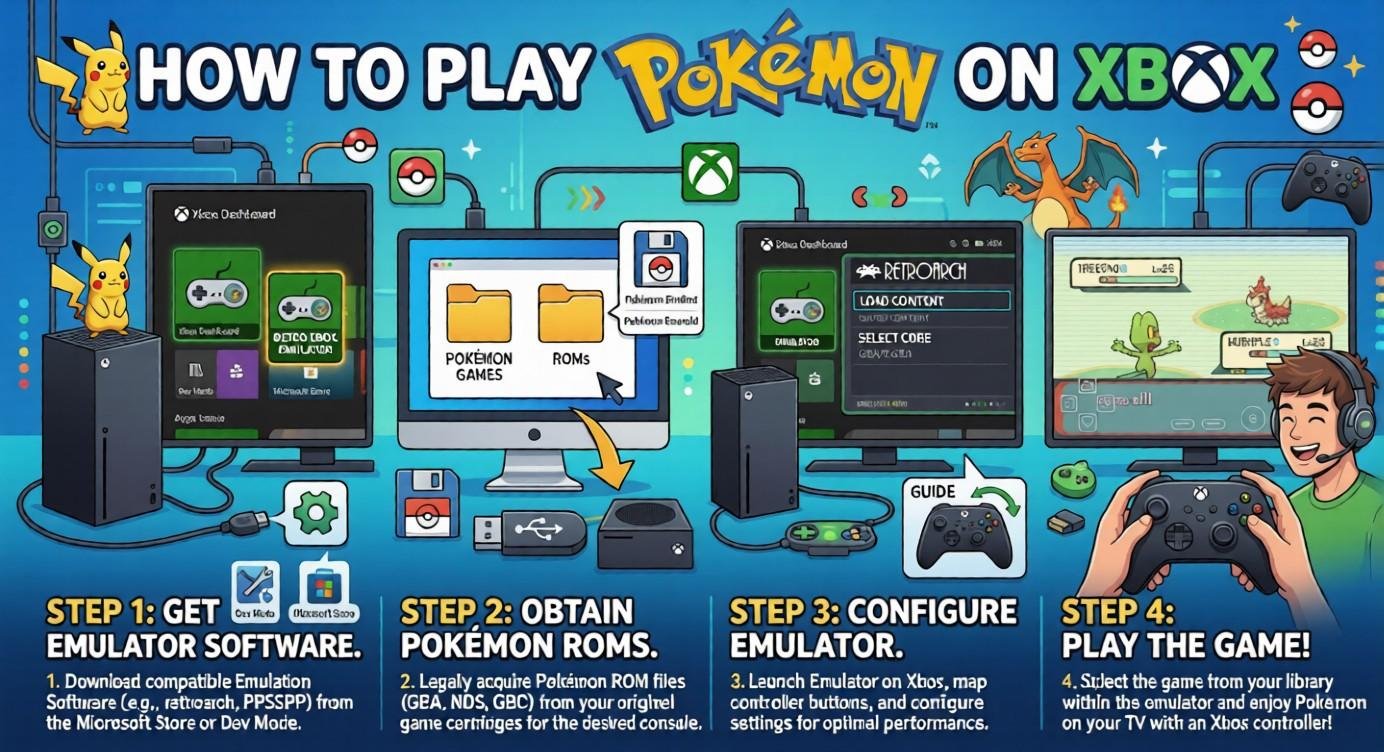
The question comes up more than people expect. Can you play Pokemon on Xbox today? The short answer is no on Xbox One. Official games are not available there.
That is the first thing to know clearly. It saves time before trying any random method. From what I have seen, confusion is common. Many people ask this question in forums.
The better angle is indirect access, not native support. You may play through streaming from supported devices. That still does not turn Xbox into a Pokemon system. On Xbox One, these games remain unofficial there.
So anyway, keep expectations realistic from the start. Do not expect any official store version to appear. If you want to play, use hardware made for Pokemon. That keeps the setup simple and safe on Xbox.
Why This Setup Feels Different
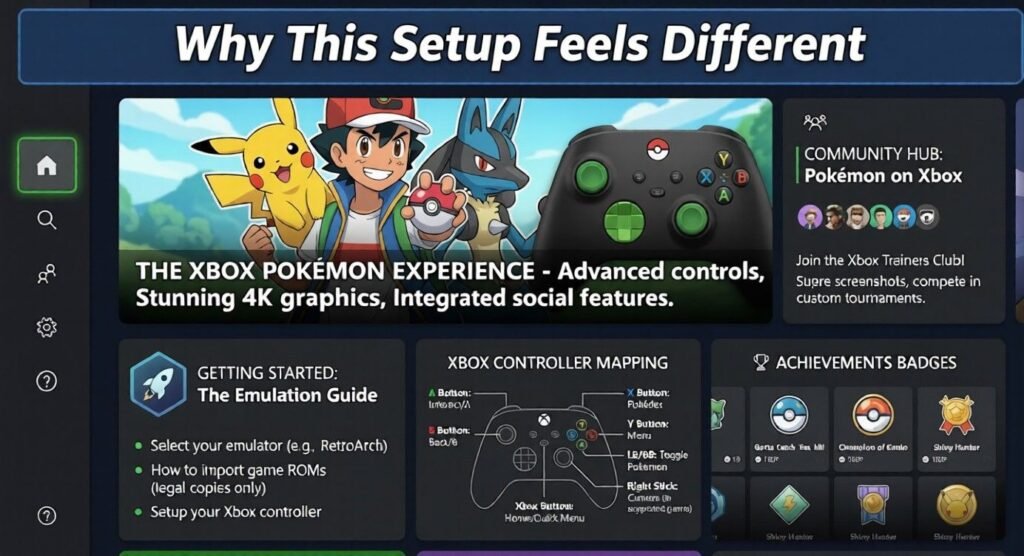
After the first step, the focus shifts to Xbox. On Xbox Series S, Dev Mode and RetroArch work well. In my experiment, this felt more interesting than Game Pass. It opened the possibility to emulate older titles with ease. You first need a Microsoft Dev Account.
That takes some time and some money. I watched a 30-minute video, paid 17€, and followed what Microsoft explained. After that, I was ready to acquire and install everything. Then I could install the frontend and make the setup run.
Why the Save File Matters
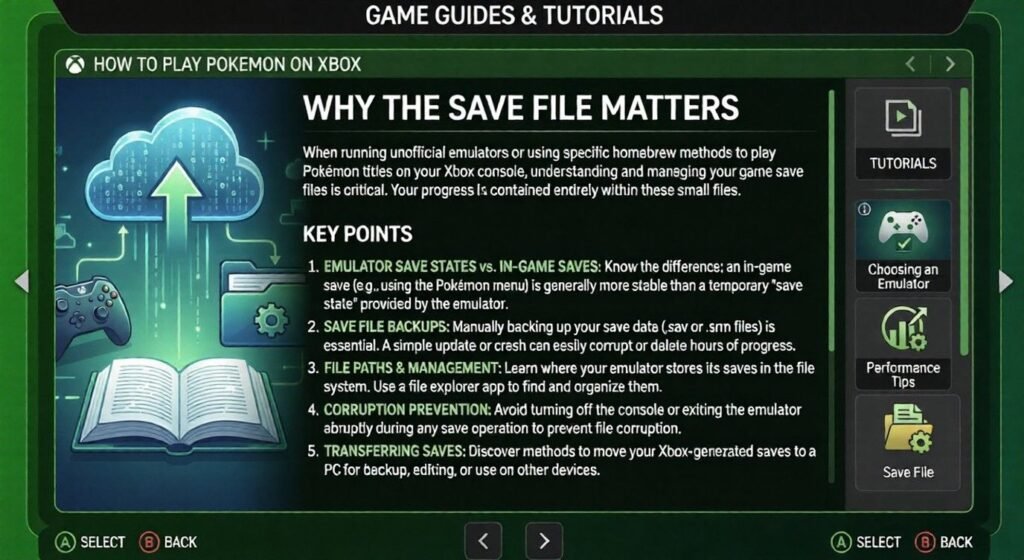
My goal was to transfer a 16-year-old save file. It had almost 600 hours of playtime behind it. So this was not only about Pokémon. It was also about preserving a piece of my childhood. With Pokémon Ruby, the whole idea felt personal.
My preferred method used a Nintendo DS Lite. I paired it with an M3 DS Real. That let me back up and restore data from a cartridge. I moved saves and ROMs to a Micro SD Card. That also added some much-needed legality. Basic legality matters when using old game files.
Finding the Right Handheld
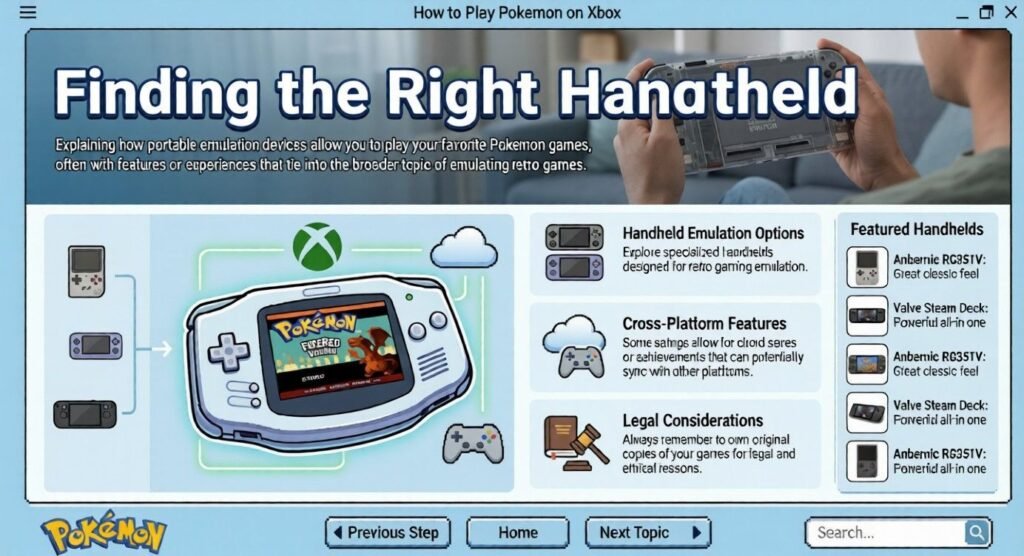
My old NDS Lite was no longer in my possession. The price was high for one in decent shape. Now I even prefer it over my Nintendo 2DS XL. That is true for actual Nintendo DS games. It also feels great for other Nintendo DS games.
With the system in hand, I checked a trusted guide. I reviewed the steps for event tickets in Pokémon Emerald. That helped me avoid mistakes before the next step. Doing this made the full process feel simpler. It also made everything start working faster.
Fixing the Save File in RetroArch
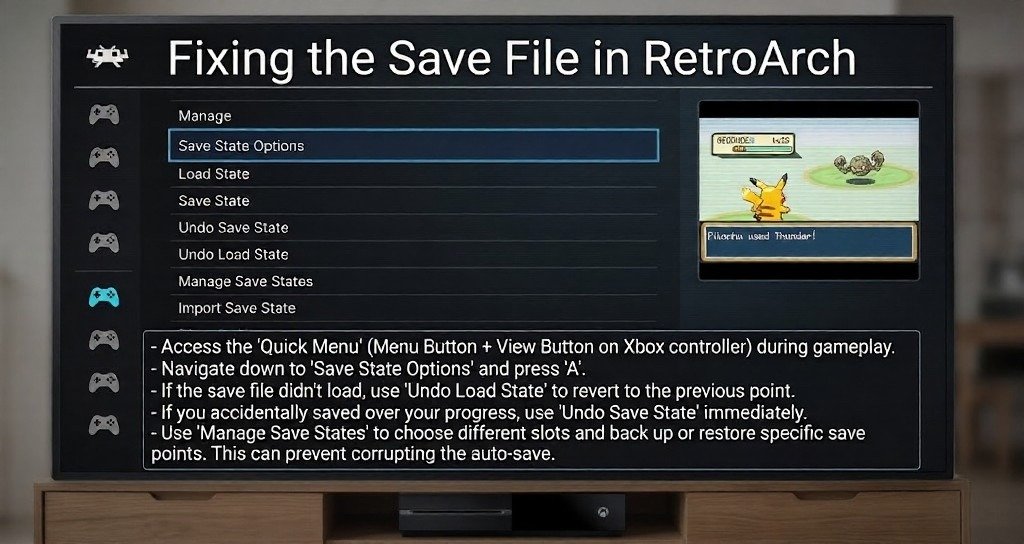
The hardest part was booting the save correctly. I placed it in the right directory. But it still would not load. So I checked again. Inside the Saves folder, I found a new save file. It had been made by RetroArch for Pokémon Ruby.
I copied that name and renamed my original save file. I also kept the.SRM ending is correct. Then, voilá, everything loaded. Seeing it work felt amazing.
Why It Works Better for Comfort
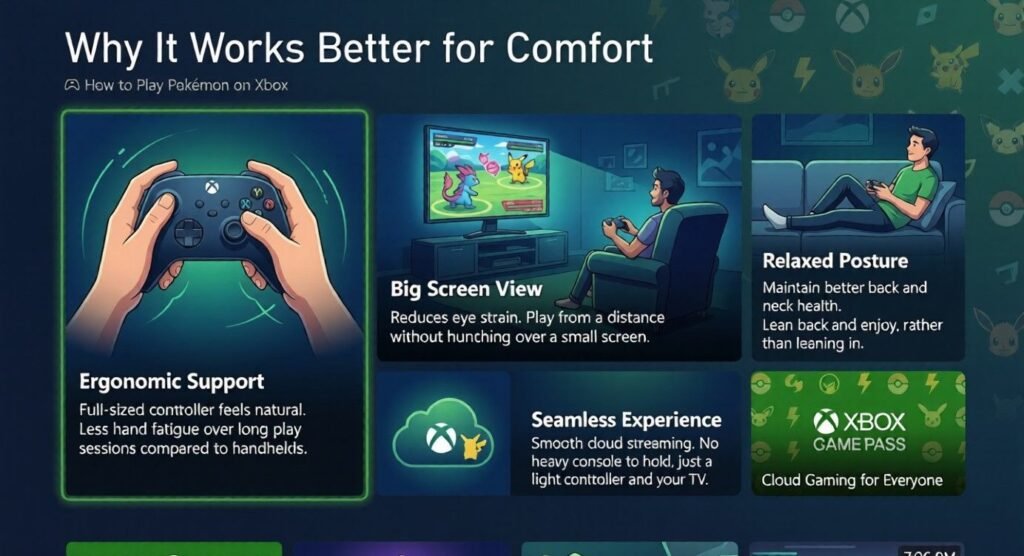
I also tested Metroid Fusion. I am currently playing it, so the comparison was easy. On handheld hardware, it can get uncomfortable. That is mostly true for my fingers. On console, it feels smoother and easier to enjoy. I can still restore the file later if needed. It is not exactly like a Nintendo Switch.
Still, the balance of comfort and portability feels strong. You can move between devices and keep the same progress. That lets you feel more assured. Your data can stay preserved forever with care. That matters a lot for older saves.
FAQ’s
Q. Can you play Pokémon on Xbox One officially?
Ans: No. Official Pokémon games are not available on Xbox One.
Q. Is there any indirect way to access Pokémon on Xbox?
Ans: Yes. Some players use streaming or emulation methods, but Xbox does not officially support Pokémon games.
Q. What makes the Xbox Series S more useful for this setup?
Ans: On Xbox Series S, Dev Mode and RetroArch can be used to emulate older Pokémon titles.
Q. What do you need before setting up Pokémon on Xbox?
Ans: You need a Microsoft Dev Account, some setup time, and the required apps or frontend tools.
Q. Why was the save file so important in this process?
Ans: It mattered because it preserved a 16-year-old save with nearly 600 hours of playtime.
Q. How were the save data and ROMs moved from the original cartridge?
Ans: They were backed up using a Nintendo DS Lite, an M3 DS Real, and a Micro SD card.
Q. Why did buying another Nintendo DS Lite become necessary?
Ans: The original DS Lite was no longer available, so a replacement was needed to continue the process.
Q. How did a guide help before moving forward?
Ans: A trusted guide helped avoid mistakes and made the next setup steps easier and faster.
Q. What fixed the save file issue in RetroArch?
Ans: Renaming the original save file to match RetroArch’s new save file name, while keeping the.SRM extension solved the problem.
Q. Why does playing on a console feel better for comfort?
Ans: Console play feels smoother and more comfortable, especially during longer sessions than handheld gaming.
Conclusion:
If you want to know how to play pokemon on Xbox, the answer is not official support. Xbox consoles do not offer native Pokémon titles through the Microsoft Store. Instead, players use indirect methods to enjoy older games on newer hardware. That makes the setup possible, but it does not make Xbox a true Pokémon platform.
For fans exploring pokemon games on Xbox, the appeal is mostly comfort and preservation. Using tools like Dev Mode and RetroArch can help bring classic titles to the console. This is especially useful for players who want to keep old save files alive. In the end, it is a practical workaround for retro play, not an official Xbox feature.
